X6100 Link by IU1WXYBETA

X6100 Link

Your X6100 on a phone or a tablet, over WiFi: the waterfall in your hand, every digital mode with TX, a logger for every QSO.

Coming soon on Google Play How to connect GitHub

Beta: the app is in active development.

Android phones and tablets · needs the X6100 IU1WXY firmware (it does not work with the stock Xiegu firmware)
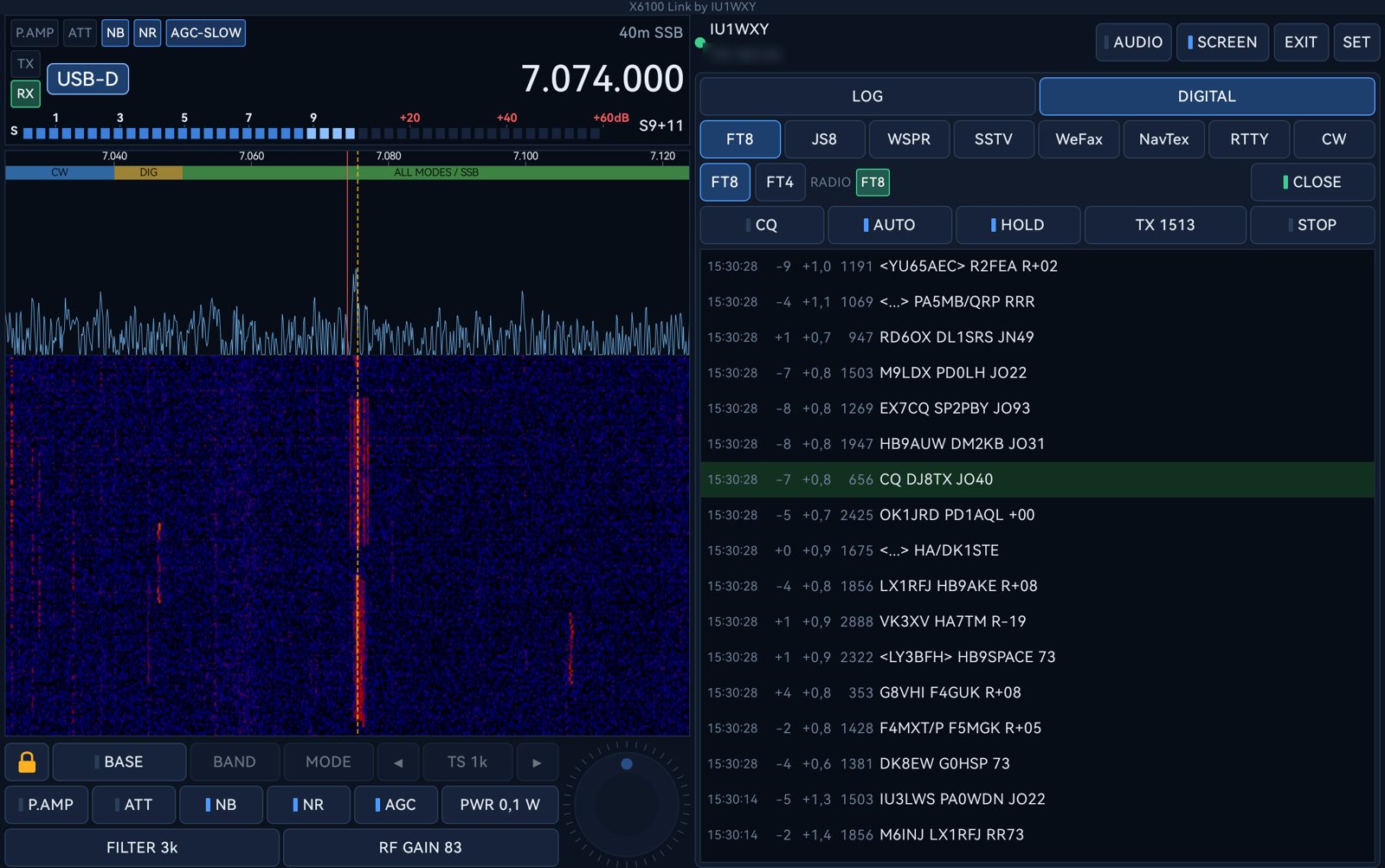
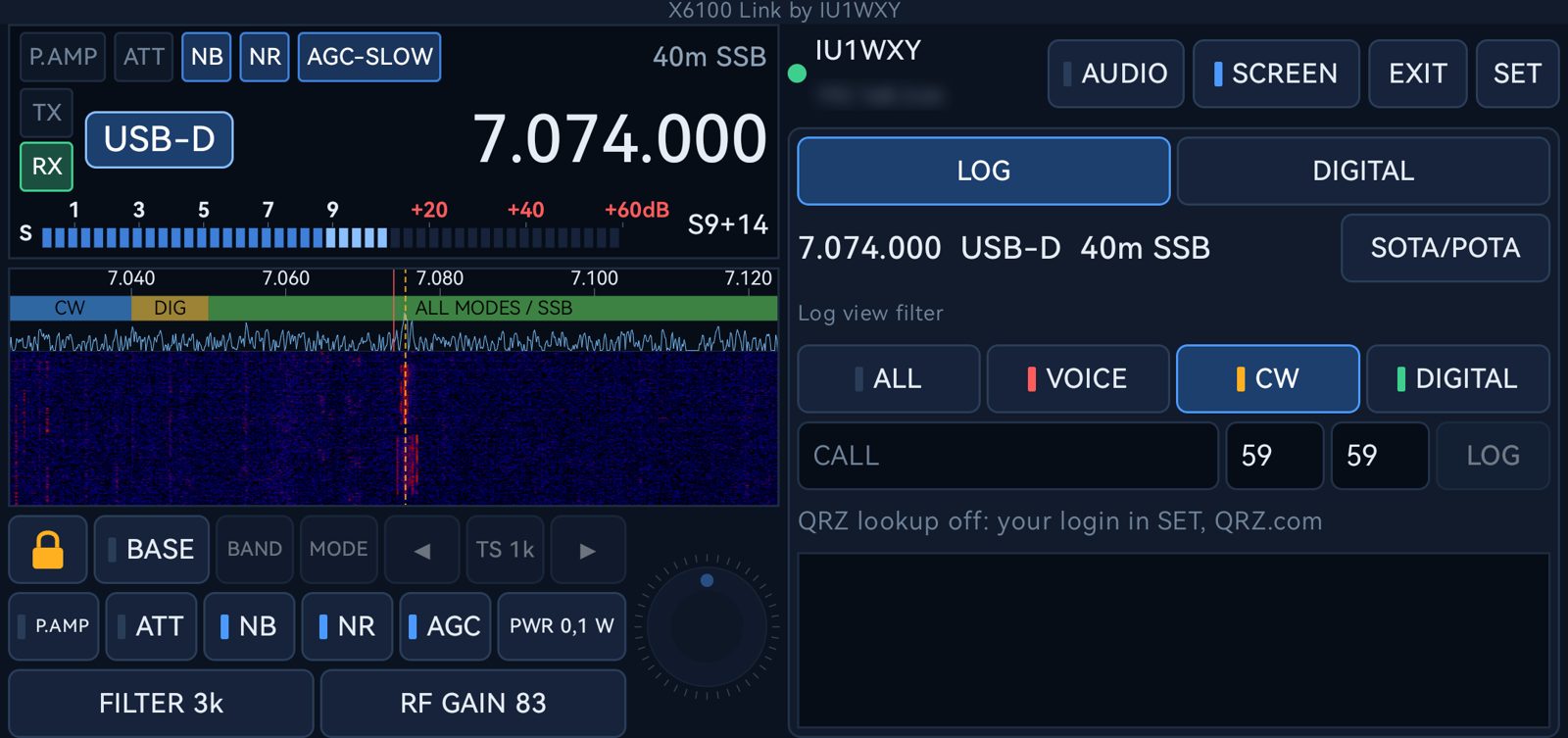
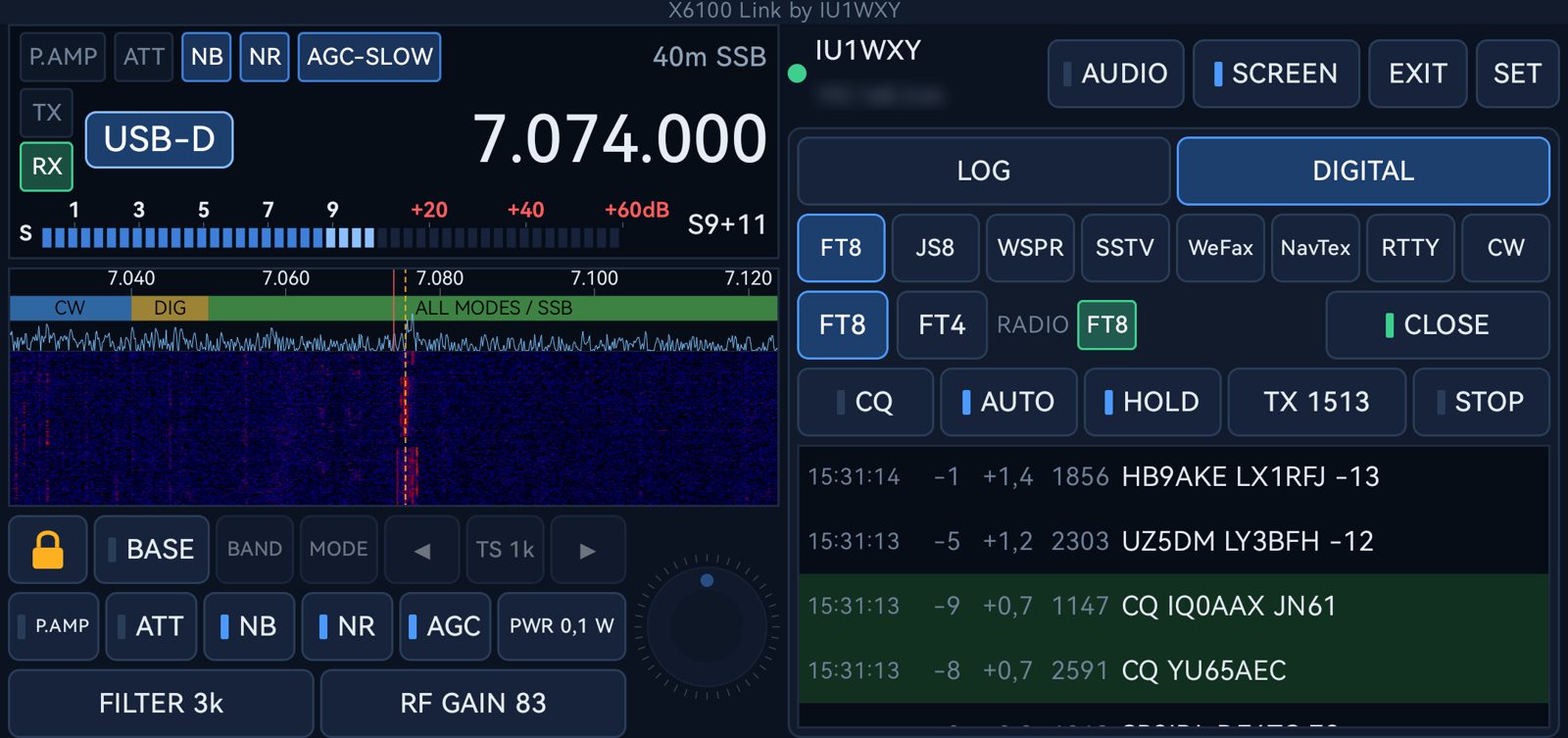
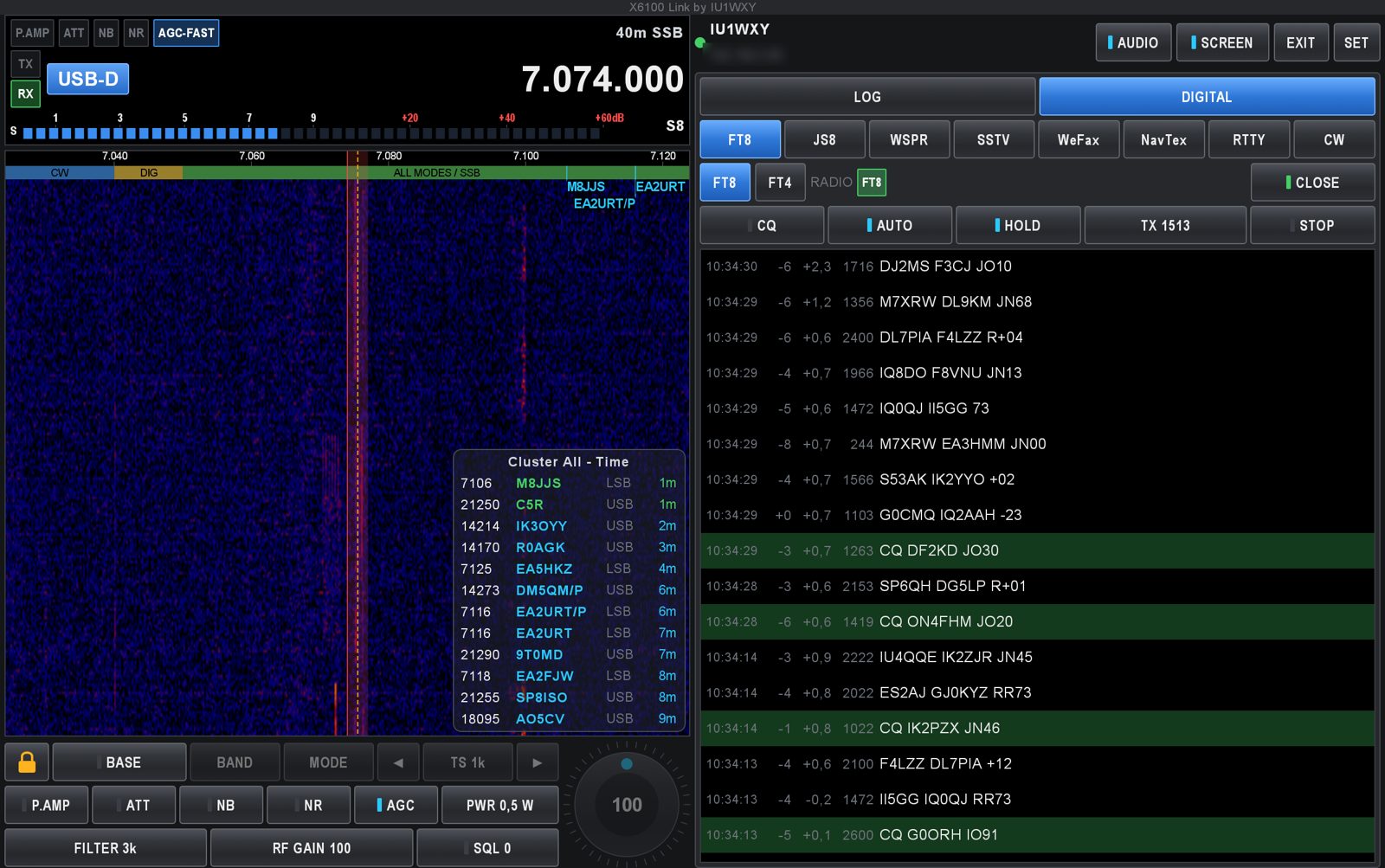
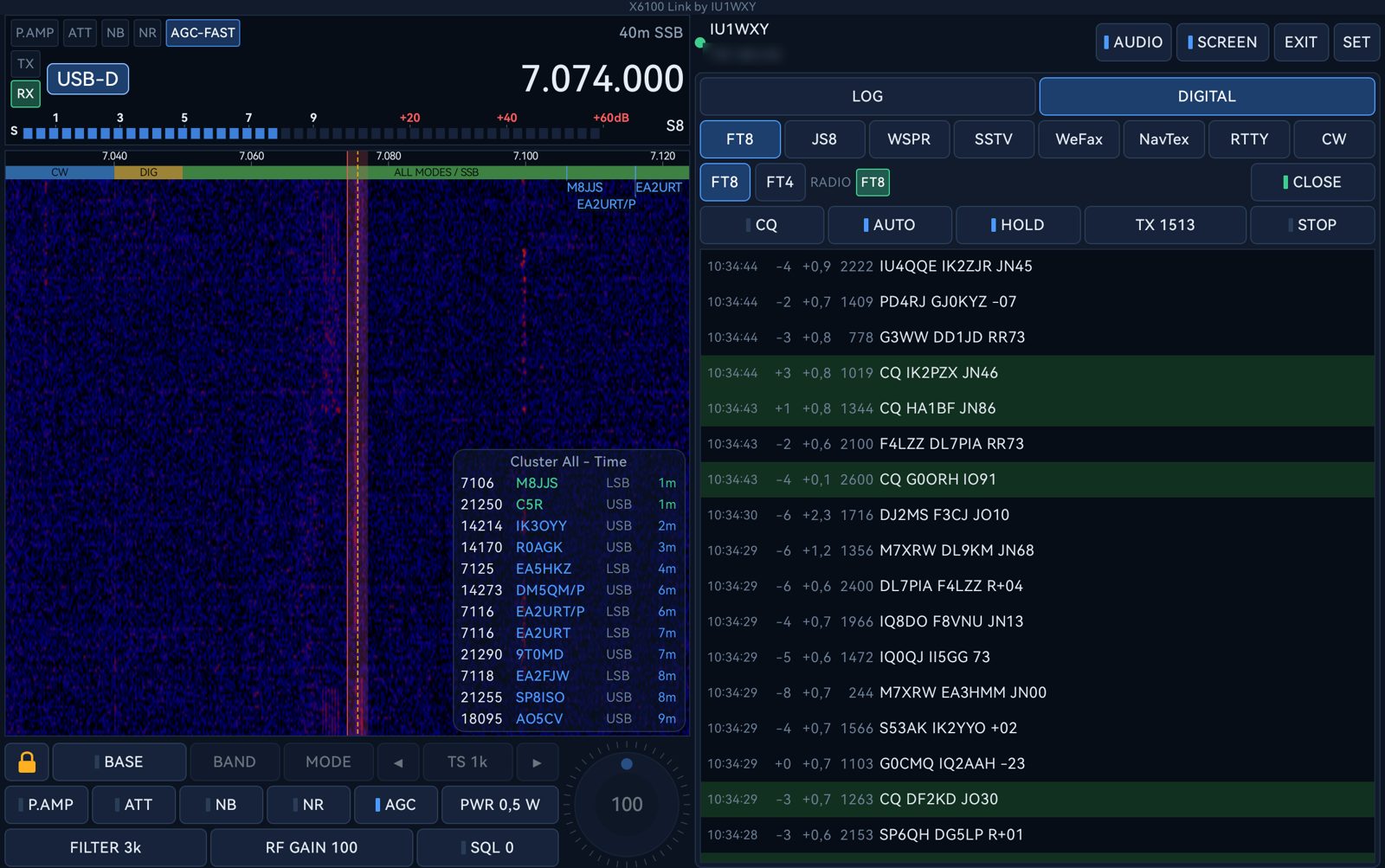
BETAX6100 Link on a tablet: radio on the left, FT8 on the right
Radio controls and waterfall

The radio in your hand

  • Frequency, band, mode, tuning step and a VFO knob (bigger on tablets): tap the step for the next one, hold it for the list.
  • Live spectrum and waterfall with frequency scale, IARU band plan, VFO line and filter passband: tap or drag to tune, pinch to zoom.
  • S-meter, preamp, attenuator, NB, NR, AGC, squelch, filter width, RF gain and TX power.
  • RX audio on the phone, with its own volume.
  • The DX cluster as on the radio: calls over the waterfall and a column of spots around the VFO; tap a spot to tune it.
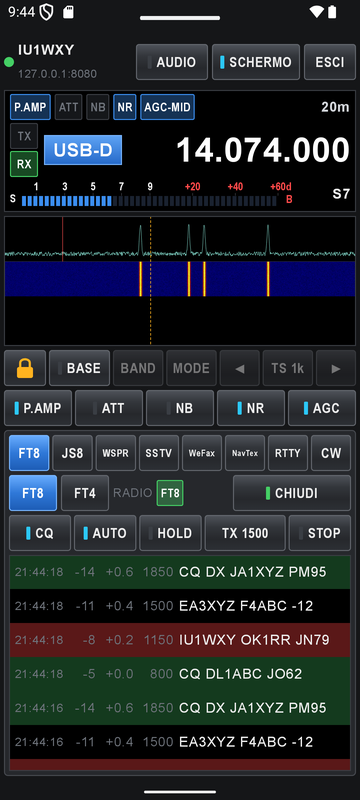
FT8 in the app

Every digital mode, with TX

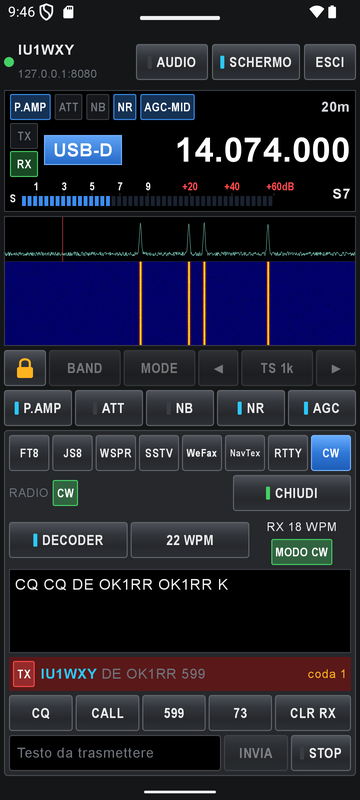
The radio decodes and transmits, the phone is the screen and the keyboard. All eight apps of the radio open from the phone:

  • FT8 / FT4: decodes, CQ, reply, auto sequence, hold, TX frequency (tap the waterfall to set it).
  • JS8, WSPR and NavTex (receive).
  • SSTV: send pictures from the gallery or straight from the camera, with call and text.
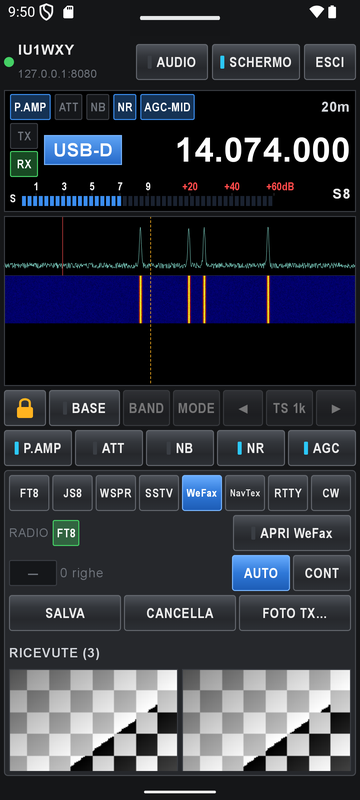
  • WeFax: received faxes full screen, zoom, save and share; send a picture.
  • RTTY and CW: text to send, macros with {CALL}, the characters already on the air in cyan.

While an app is open the VFO is locked (padlock to unlock); BASE brings you back to the app's frequency and mode.
The log page

A logger for every QSO

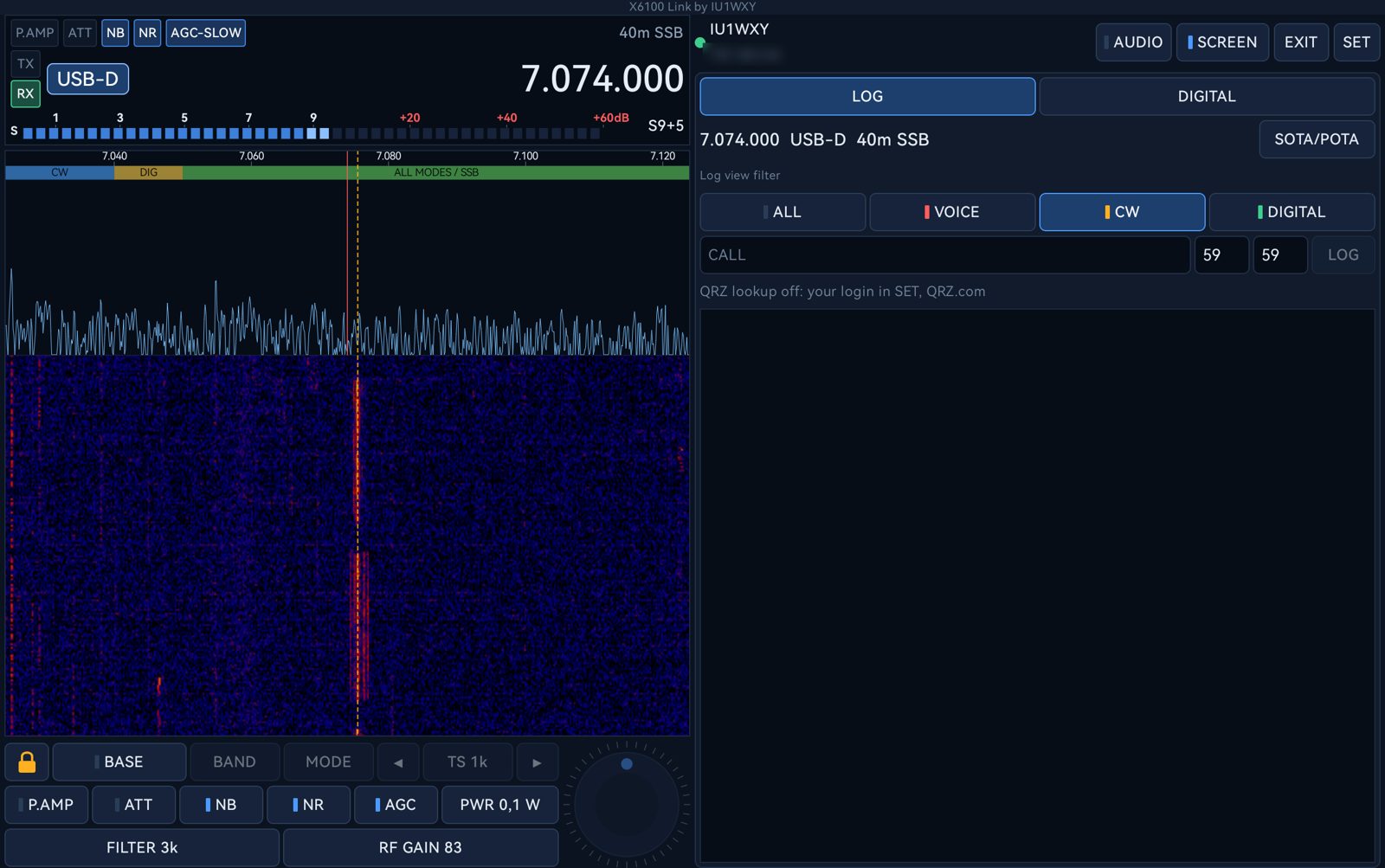
  • Log voice and CW QSOs in a few taps: call, RST sent and received, LOG.
  • FT8, FT4, JS8, Field Ops and the phone all write one ADIF log of the day on the radio, ready to download from the web page.
  • QRZ.com lookup as you type the call: name, QTH, locator, country and flag, zones, distance and bearing, photo; it all goes into the log.
  • Filter by voice, CW or digital; edit or delete a QSO, add the other station's SOTA or POTA reference.
Field Ops activation on the radio

SOTA and POTA from the phone

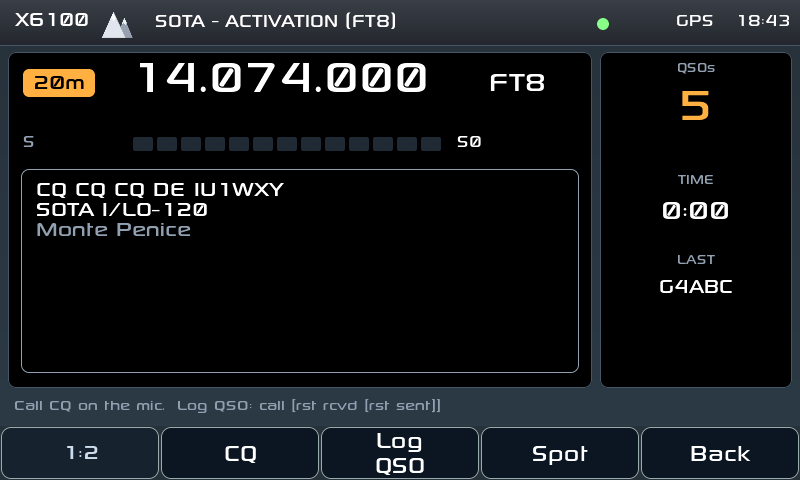
When the radio enters Field Ops, the app switches by itself to its SOTA/POTA page:
  • the reference you are on and the ones nearby, to choose with a tap;
  • Start and End of the activation, QSO entry with the phone's keyboard, the QSO list, Spot;
  • the phone's GPS gives the radio its position, so it finds the summit or park even without a GPS on the radio.

How Field Ops works on the radio

App settings

Made for the field

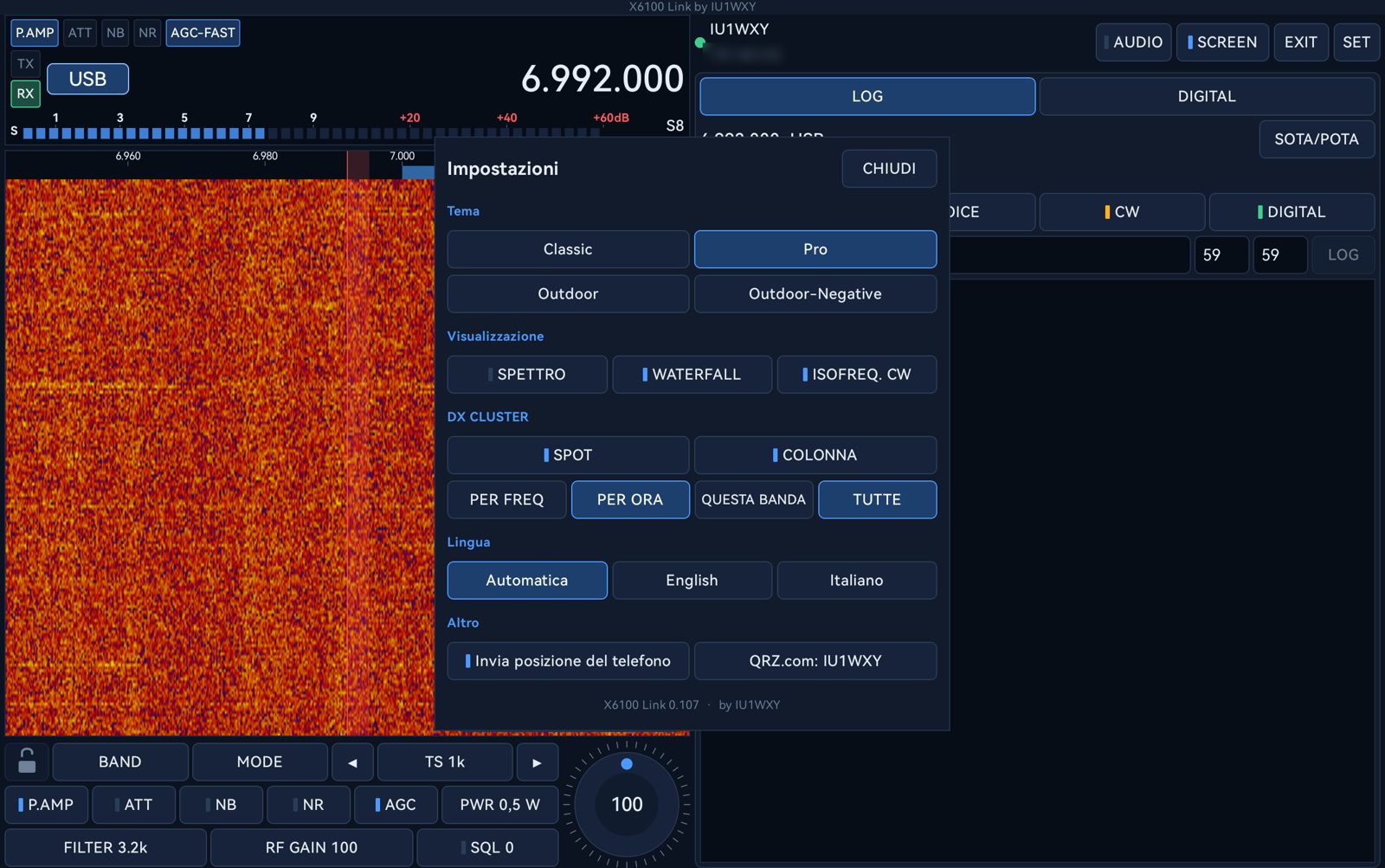
  • Four themes: Classic, Pro, Outdoor and Outdoor-Negative for full sunlight.
  • Phones and tablets, portrait (radio on top, app below) and landscape (side by side); rotating keeps the connection.
  • Spectrum and waterfall can be hidden one by one; labels in English or Italian.
  • No account, no cloud: the app talks only to your radio, and to QRZ.com if you enter your login.

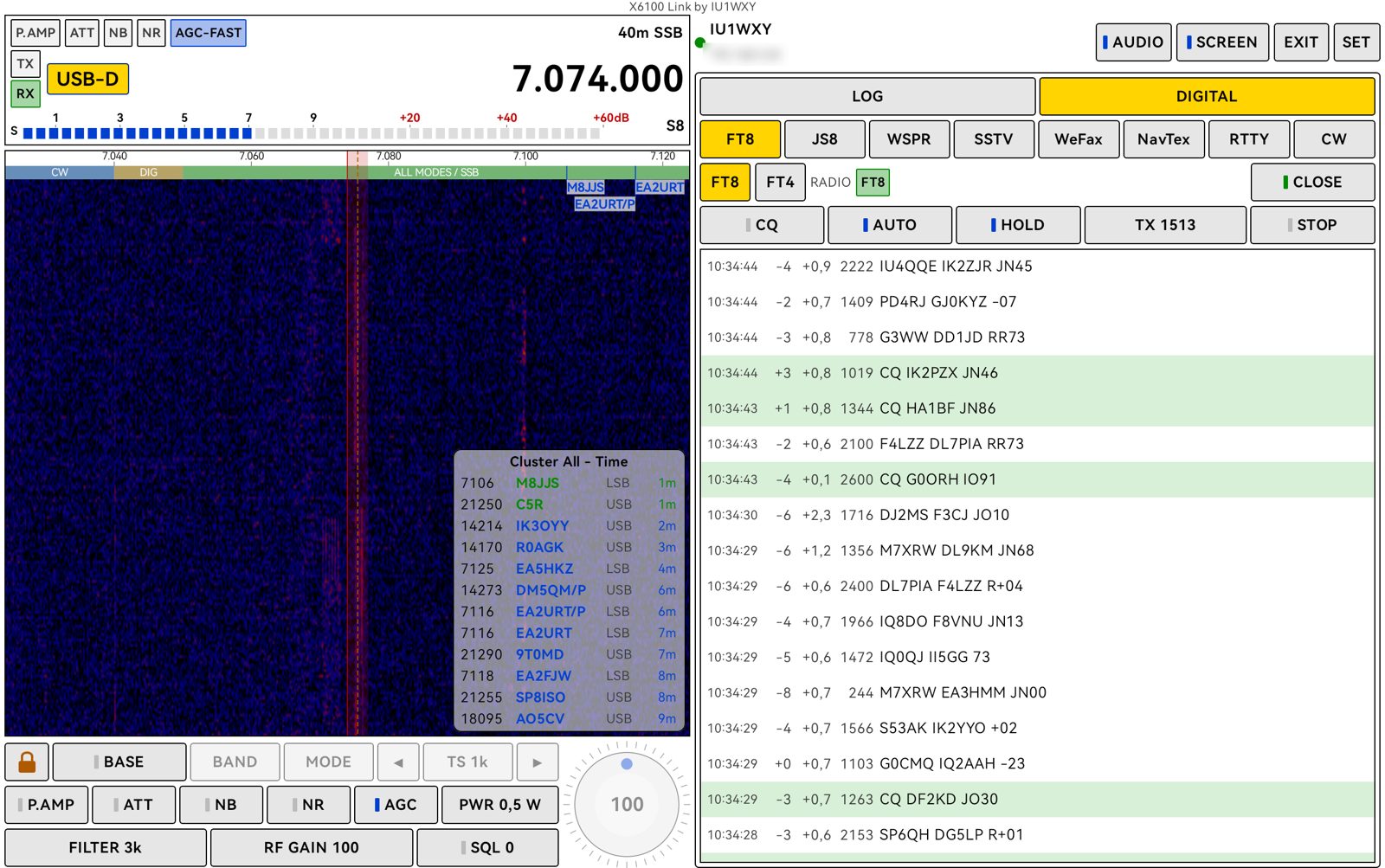
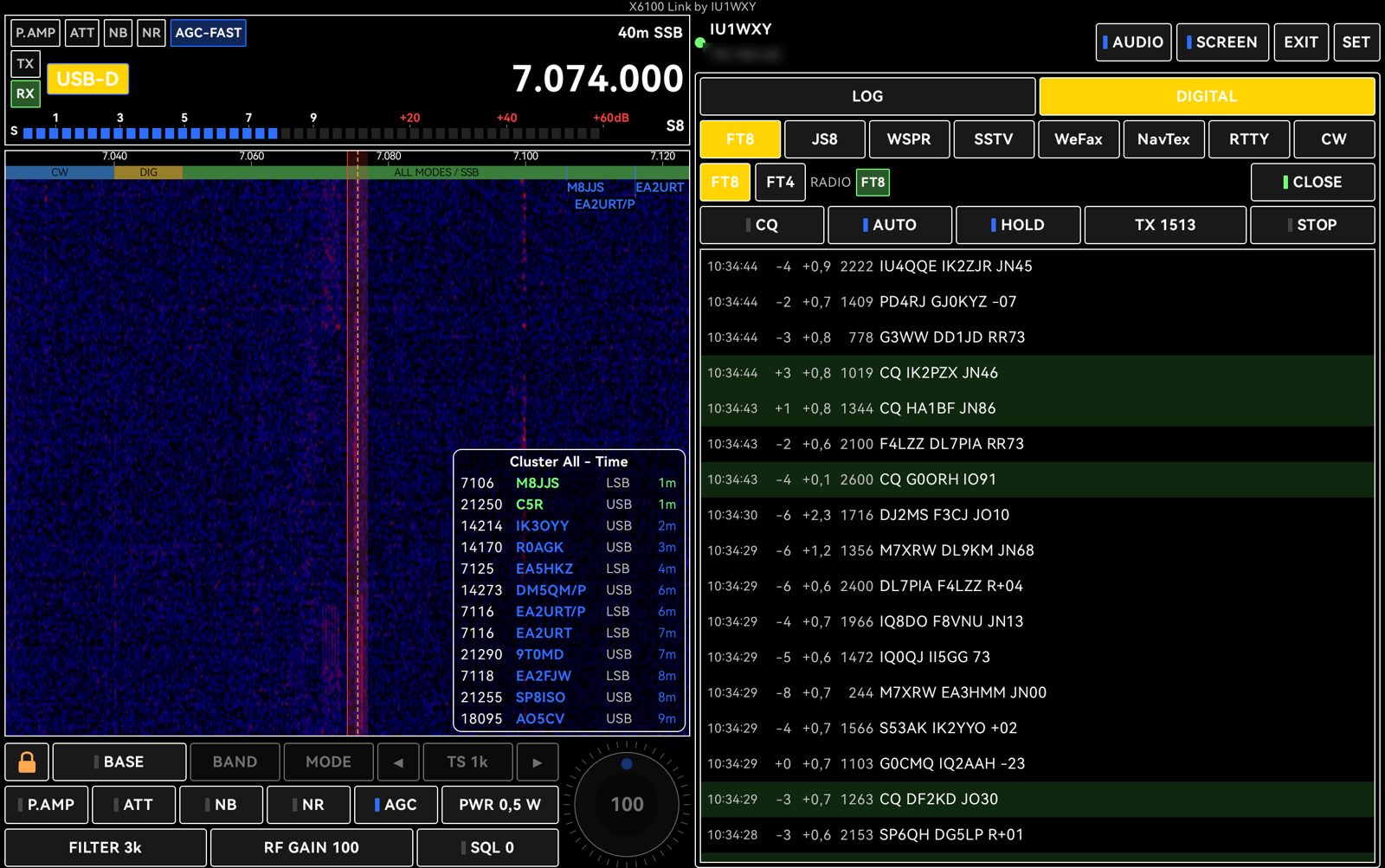
Four themes

Pick one in SET → Theme: from the dark Pro to Outdoor, made to read in full sun.
How to connect

  1. Turn on the phone's hotspot (or use your home WiFi).
  2. On the radio: Settings → Wireless, connect the radio to that network.
  3. Open X6100 Link: it tries the last radio, otherwise looks for it on the network by itself. Tap the radio found, or type its IP.

App and firmware go together: keep both at the latest version.

Problems or ideas about the app? Open an issue on GitHub. Release notes and documentation are in the X6100 Link repository.